How to Fix Slow DNS Lookup in Windows, Mac, & Chrome

- 04 June 2026
DNS is among the most critical components in networking. When DNS lookup is slow, the user experience is disrupted. For example, websites load slowly, the internet lags, etc. When websites load slowly, visitors often leave. That can result in the loss of revenue. This blog post will guide you through the causes of slow DNS lookups and easy ways to fix them.
| Summary
Slow DNS lookups add latency to website loading. The easiest fix is switching from the ISP’s DNS to a public DNS server. For example, Cloudflare DNS (1.1.1.1) or Google Public DNS (8.8.8.8). This can reduce lookup times from 80ms+ to under 15ms. Flushing your DNS cache and enabling DNS prefetching in Google Chrome can also reduce latency. |
What Is DNS Lookup Time and Why It Matter?
DNS stands for Domain Name System, which translates human-friendly domain names into their corresponding IP addresses. The time your device takes (typically in milliseconds) to translate a domain name into its IP address is called DNS lookup time. Whenever someone searches for a website in a browser, this lookup happens first. Until the DNS resolves the domain query, not a single byte of data gets transferred.
The actual DNS lookup time depends on the following elements:
- Your DNS server
- Network conditions
- Cached results
However, the lookup process generally completes in 20-120 milliseconds depending on resolver speed, cache status, and network latency. The faster the DNS Lookup process, the faster a website will load. If the DNS lookup process is slow, you can expect a delay in website loading.
And according to Google research from 2017-2018, every 1-3second increase in delay results in a higher website bounce rate (approx 32%).
This means users do not wait for a website to load; they leave right away. As a result, traffic gets lost. Yet slow DNS alone is not the cause, but it is one of the bottlenecks.
| Things to Know
A study shared by Cloudflare reports that ISPs' DNS resolvers do not provide strong encryption and can be slow. Switching to better resolvers like Cloudflare (1.1.1.1) can improve performance. |
What Causes Slow DNS Lookup?
There are multiple elements that can slow down the DNS lookup process. If you are experiencing a slow DNS lookup issue on your device or network, the reason may be one of the following.
1: Slow DNS resolvers from your ISP
The most common reason for slow DNS response times is the default resolver configured by your ISP (Internet Service Provider).
The default DNS resolvers set up by ISPs are often overloaded. Because of this, they take a longer time to complete the lookup process than usual.
As a general observation, an ISP's DNS usually takes around 80ms to 200ms to complete a DNS lookup.
2: Long distance to the DNS server
Instead of using the nearest public DNS server, many ISPs set up a server that is not in your region. Because of this, upon searching for a website, the request takes a long time to travel back and forth. This extra travel time increases latency and slows DNS lookups.
3: Too many CNAME Redirects
Every CNAME record adds another DNS lookup step. If a domain passes through multiple CNAME records before reaching the final IP address, the lookup process becomes slower.
4: Network congestion or packet loss
Heavy traffic on your local network or router can delay DNS packets. In some cases, failed packets trigger retransmission and increase lookup time.
5: Old or corrupted DNS cache
Your operating system or browser stores DNS records in cache to speed up future requests. However, outdated cache entries can create repeated slow lookups instead of fast cached responses.
6: Very low TTL settings
TTL also called Time to Live, controls how long DNS records stay cached. Low TTL values force devices to request fresh DNS data more often. This increases lookup frequency and sometimes slows down the DNS lookup process.
7: IPv6 fallback delays
Some networks attempt IPv6 DNS resolution first. If it fails, the system falls back to IPv4. This extra step can slightly delay the DNS lookup process. For a better understanding, read about the differences between IPv4 and IPv6.
8: VPN or proxy usage
Some VPNs and proxies route DNS traffic through distant servers. This can slow down DNS resolution, especially if the VPN network is overloaded. This is especially very common on free VPN apps and browser extensions.
How to Measure DNS Lookup Speed?
Before we walk you through fixing the slow DNS Lookups, checking the current speed can be good. You can vary DNS Lookup speed by various means. The actual process can vary with the device’s operating system (OS).
Method 1: Using PowerShell on Windows
You can measure the DNS Lookup speed on Windows via PowerShell.
- Press Windows + S
- Type PowerShell
- Open Windows PowerShell
- Paste the command: Measure-Command { Resolve-DnsName google.com } | Select-Object TotalMilliseconds
- Press “Enter”.
- You will see the DNS Lookup time in milliseconds.
* Replace Google.com with any domain you want to test.
Method 2: Using dig on Mac/Linux
Mac and Linux users can measure DNS lookup speed using the dig command. Unlike many basic DNS tools, dig shows the exact DNS query time in milliseconds.
- Open the Terminal app on your device.
- Paste the following command: dig google.com
- Press Enter.
The command will return detailed DNS information. Near the bottom, look for a line mentioning query time in milliseconds. That time is the actual DNS Lookup time. Lower values mean faster DNS resolution.
Method 3: Using Chrome Browser
You can also check DNS lookup time directly inside Google Chrome using the built-in Developer Tools.
- Open any website in Chrome.
- Press F12 on your keyboard to open Developer Tools.
- Click the Network tab.
- Refresh the webpage.
- Click any request from the list.
- Open the Timing section.
Inside the Timing section, look for the DNS Lookup row. The value shown there is the time Chrome took to resolve the domain name.
If the DNS lookup time regularly stays above 100ms, your DNS server may be slow. In that case, switching to a faster public DNS provider can help reduce latency.
How to Fix Slow DNS Lookup - 7 Easy Ways
As described above, there can be multiple reasons behind a slow DNS Lookup. Fixing it also involves different elements. The following are seven proven ways to fix slow DNS lookups.
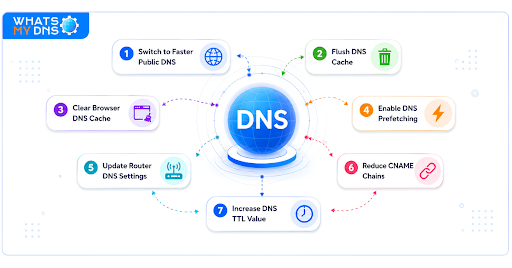
Fix 1 - Switch to a Faster Public DNS Server
The easiest and quickest fix to reduce DNS Lookup Times is switching from the ISP’s DNS to a faster public DNS server, such as Google (8.8.8.8) or Cloudflare (1.1.1.1). This alone can significantly increase DNS Lookup speed by reducing lookup latency.
Fix 2 - Flush DNS Cache
A stale or corrupted DNS cache is among the culprits behind slow DNS lookups and DNS resolution failures. Flushing the DNS cache often fixes the issue. The process varies by operating system.
For your ease, we have already published a guide on how to flush the DNS cache. Read it out to get an easy-to-follow process.
Fix 3 - Clear Browser DNS Cache (Internal)
Web browsers maintain their own DNS cache. This cache is other than the one stored by a device’s operating system. So, if you flush the DNS cache from the device operating system, you might see old entries or face slow DNS lookups.
This can be fixed by removing the browser’s internal DNS cache. The steps vary with the browser type. Here are the steps for the popular ones.
Google Chrome:
- Open Chrome browser
- Visit the URL: chrome://net-internals/?#dns
- Click “Clear Host Cache”
- From the left sidebar, click “Sockets.”
- Next click, both “Close idle sockets” and “Flush socket pool” respectively.
If that doesn’t work, simply go to settings and reset your Chrome browser.
Microsoft Edge:
- Open the Edge browser
- Visit the URL: edge://net-internals/?#dns
- Clear DNS cache and flush socket pools
Brave:
- Open the Brave browser
- Visit the URL: brave://net-internals/?#dns
- Flush DNS cache and close idle sockets
That’s how you can fix the internal DNS cache issues.
Fix 4 - Enable DNS Prefetching
DNS prefetching is a browser feature that resolves domain names before you actually click a link.
For example, when a webpage contains links to other websites, the browser quietly performs DNS lookups for those domains in the background. As a result, if you later click one of those links, the browser already knows the IP address and can open the website faster.
Modern browsers like Google Chrome or Firefox use DNS prefetching to reduce page load delays and improve browsing speed.
However, this feature is sometimes disabled, which causes slow DNS lookups. By enabling it from the browser settings, you can improve the lookup speed.
Fix 5 - Update Router DNS Settings
If multiple devices on your network have slow DNS lookups, updating the DNS settings directly on your router can help. Once you change the DNS on the router, every connected device will start using the new DNS server automatically.
- Open a web browser on any device connected to your Wi-Fi
- Type your router IP address in the address bar.
- Log in to your account.
- Find the DNS section (probably in network settings)
- Enter a faster public DNS server
- Save settings and restart your router
After rebooting, all devices connected to the router will start using the updated DNS server. This can reduce DNS lookup delays and improve browsing speed across your whole network.
Fix 6 - Reduce CNAME Chains For Websites
Every CNAME record adds another DNS lookup step. If your domain passes through multiple CNAME records before reaching the final IP address, the DNS lookup process becomes slower.
For example, instead of going directly to the website server, the request may jump through several domains first. Each extra step increases the delay.
A shorter DNS path helps websites load faster. To reduce lookup time:
- Check DNS records for the domain
- Point our CNAME records
- Remove unnecessary CNAME records
- Avoid long redirect chains
- Use direct A records where possible
- Use DNS providers that support CNAME flattening or ALIAS records.
Fix 7 - Increase DNS Time to Live (TTL) of Websites
As we discussed earlier, TTL controls how long DNS records remain in cache before the system requests fresh DNS data.
If the TTL value is very low, DNS resolvers must repeatedly contact your DNS server. This increases DNS lookup requests and can slow down website loading.
A higher TTL allows DNS records to stay cached for a longer time. Because of this, future DNS lookups become faster.
The table represents some generally recommended TTL values for website usage.
|
TTL Value |
Cache Time |
Best Use |
|
60 |
1 Minute |
Frequently changing records |
|
300 |
5 Minute |
Temporary or testing changes |
|
3600 |
1 Hour |
Stable website records |
|
86400 |
24 Hours |
Records that rarely change |
How to Check if Your DNS Speed Improved?
After changing your DNS settings, you can compare the results before and after the update.
In most cases, DNS lookup times become much lower after switching to a faster DNS provider like 1.1.1.1 or 8.8.8.8.
You can verify the improvement using these methods:
Compare DNS Lookup Times
Run the same DNS lookup test we mentioned earlier again using:
- PowerShell on Windows
- dig command on Mac/Linux
- Chrome Developer Tools
If the new DNS server is faster, you should see lower lookup times in milliseconds.
Test DNS Server Latency
You can also use an IP Ping tool to test how quickly your device communicates with the DNS server. A lower ping usually means the DNS server is physically closer or responds faster to requests.
However, remember that ping measures network latency, not the actual DNS lookup process. It simply helps compare DNS server responsiveness.
Frequently Asked Questions
What is a good DNS Lookup time?
Generally, 20ms to 120ms is considered a good DNS lookup time. DNS lookup times under 30ms are considered excellent, while those under 50ms are good. Above 50ms to 100ms are acceptable, and above that are usually considered slow.
Is Cloudflare DNS faster than Google DNS?
Yes, Cloudflare DNS (1.1.1.1) is usually faster than Google DNS (8.8.8.8). Both have a good reputation among international benchmarks, delivering low latency and faster resolution times.
Why does DNS remain slow after changing servers?
Sometimes, even after making changes to the DNS servers, the speed remains slow. This is usually because of propagation delays and cached data in browsers and device operating systems.
Does changing DNS servers improve internet speed?
Yes, changing from the ISP DNS server to a faster public DNS server improves speed to some extent. However, the major impact is a faster browser experience and faster website loading.
Can VPN slow down DNS lookups?
Yes, a VPN can slow down DNS lookups. When you use a VPN, your DNS requests often travel through the VPN servers instead of going directly to your configured DNS server. This extra routing can increase DNS lookup time.
Related Blogs

How to Improve Internet Speed - Simple Fixes That Actually Work
Quick and easy tips to make your internet faster without needing technical skills.
- 16 Jun 2025

Misconfigured DNS: The Hidden Risks & Threats Explained
Uncover how misconfigured DNS settings can expose your network to security threats, downtime, and data leaks.
- 30 Jul 2025

Troubleshooting DNS Propagation - How to Fix Common Domain Connection Errors
Learn how to solve DNS delays and fix domain connection issues easily.
- 30 Jun 2025